Additionally
| Wireless technologies |
Wired |
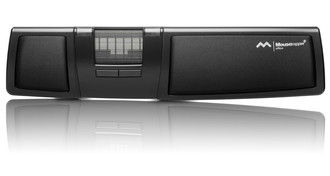
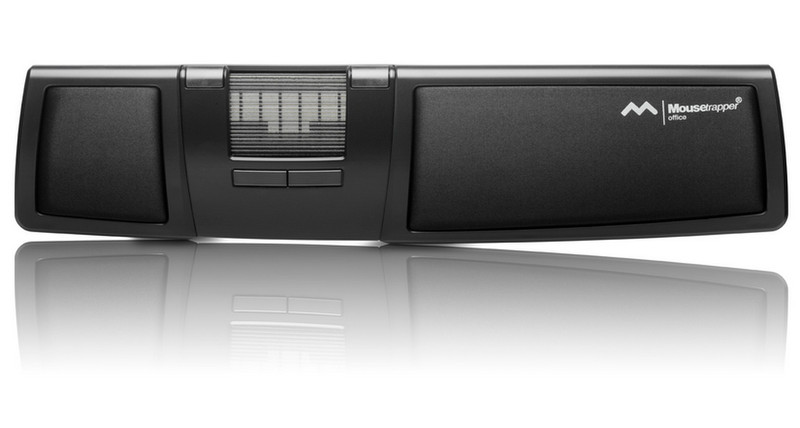
Office - USB, Wrists Rests, Black
<b>NSTALLATION</b>
Mousetrapper Office is available for USB connection.
Start the computer.
Connect the enclosed cable to the connection point on the left side of the Mousetrapper.
Connect the rectangular USB plug to a rectangular USB port of your computer.
<b>PLACEMENT</b>
Mousetrapper Office is placed in front of the keyboard, i.e. between yourself and the keyboard, in order to gain support for your wrists and to easily reach the steering pad with your fingers. Placement and design enables both left and right handed individuals to comfortably maneuver the Mousetrapper.
<b>FUNCTIONS</b>
The below functions are the standard (default) settings for Mousetrapper Office on delivery. The default functions of the buttons can easily be switched between the various buttons with the help of “MT Keys.exe”, a separate software which can be downloaded from www.mousetrapper.com and installed on your computer.
Top left button – Double click
Top right button – Right click
Lower left button – Auto scroll
Lower right button – Scroll
Steering pad – Click
Lower right button (scroll) – Keep the button pressed and move the steering pad and the scroll function will activate. You can scroll up or down by moving the pad upwards or downwards.
Lower right button (scroll) – Press the button once and the Mousetrapper will scroll down one step for each push of the button.
Lower right button (scroll) – Double click on the button once and keep pressed and the Mousetrapper will scroll down until the button is released.
Lower left button (auto scroll) – Press the button once and move the steering pad.
Steering pad – Place your finger anywhere on the steering pad and move the cursor to the desired position.
Steering pad (left click/click) – Place your finger anywhere on the pad and press down gently until you hear a clicking sound. You may also double click on the pad.
Web navigation (back) – Press the button to which the auto scroll function is assigned and click the steering pad. You can navigate back further by clicking again.
Web navigation (forward) – Press the button to which the scroll function is assigned and click the steering pad. You can navigate forward further by clicking again.
End position recognition – When the steering pad has reached its end position, the cursor will automatically move to the side of the screen. This will most frequently occur when the cursor speed is set to slow.
“MT Keys.exe” is solely used for assigning the functions of the buttons and, if so desired, to switch off the click function on the pad.